Disk Usage Visualizer Features
What AtlayaView can do as a disk space analyzer, disk usage visualizer, treemap disk viewer, and large files finder for Windows – organized by area, each with purpose and example.
Visualization

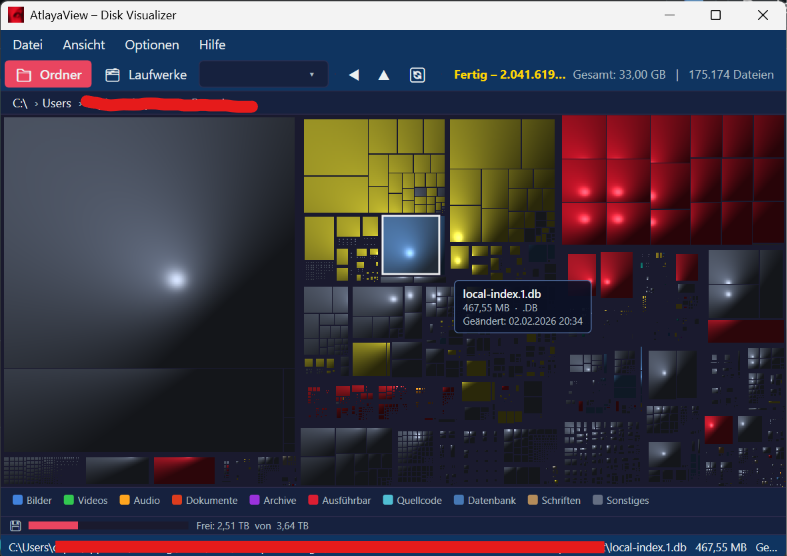
Cushion treemap of the disk
All used disk space is drawn as nested tiles – tile size reflects file size, nesting reflects the folder structure. A soft light/shadow gradient (cushion rendering) keeps every tile easy to tell apart.
Purpose: Big space hogs stand out immediately as large tiles – no need to click through Explorer folder by folder comparing sizes.
Example: A 40 GB video folder shows up as one large, unmistakable tile next to many tiny tiles for system files – the cleanup priority is obvious at a glance.

Custom extensions + color profiles
The color scheme dialog lets you add any new file extension not yet in the list and color it via the color picker. There are also "color profiles": named, reusable groups of extensions that get assigned the same color in one click – including your own, freely created profiles.
Purpose: Saves clicking through many related file types one by one (e.g. every video format) – one click on a profile colors the whole group consistently.
Example: Two example profiles come pre-installed: "Videos" (.mpg, .avi, .mov, .mp4, .mkv, etc.) and "Office Documents" (.doc, .xls, .ppt, etc.) – both ready to use immediately, freely adjustable or deletable.
Performance

Native Rust renderer
Drawing the treemap is handled by a dedicated native Rust library (atlaya_renderer) instead of plain managed .NET code. If it's unavailable, the UI automatically falls back to a managed C# renderer.
Purpose: Even very full drives with millions of files render and zoom smoothly, without freezing the interface.
Example: The About dialog shows the Rust renderer's own version number alongside the .NET version – so it's clear at a glance whether native acceleration is active.

Parallel multi-drive scans without stale results
With multiple drives selected, AtlayaView runs their scans in parallel and automatically discards stale intermediate results via an internal generation counter – even if a new selection is made while a scan is still running.
Purpose: Multiple drives are analyzed faster than one after another, yet the display never shows outdated, superseded intermediate states.
Example: While C: and D: are still being scanned, E: is added to the selection – all three keep running in parallel, and no result accidentally overwrites a newer one.
Usage

Drive picker with multi-select
A drive picker right in the toolbar lets you select a single drive or several at once; in multi-select mode the menu deliberately stays open so you can tick several boxes without reopening it each time. The toolbar and the View menu stay in sync.
Purpose: Several drives can be conveniently selected and compared in one go, instead of picking each one through a separate menu.
Example: Click the picker, tick C:, D: and E:, close the menu – all three drives are then scanned automatically one after another.
Scan starts automatically, live progress
Selecting a drive in the menu or picker starts the scan immediately, no extra F5 or confirmation dialog needed. An overlay opens right in the main window: first a visible bar animation shows the read-in phase, then the flow switches seamlessly into a processing phase with real progress.
Purpose: A scan feels instantly responsive instead of a frozen window – progress is visible at every moment, not just at the end.
Example: Click a drive in the View menu – after a short delay the overlay opens by itself and the bar starts moving, before you'd even have pressed F5.

Cancel a scan at any time
The “Cancel scan” button in the overlay is directly tied to the running scan and stops it immediately and cleanly, without leaving the interface in an inconsistent state.
Purpose: An accidentally started scan of a huge network drive doesn't have to run to completion – it can be stopped reliably at any time.
Example: A slow network drive was selected by mistake – one click on “Cancel scan” stops it immediately, and the main window is instantly usable again.

Multilingual interface
The entire program interface is available in five languages: German, English, French, Italian and Spanish. Switching happens through a simple language menu and takes effect immediately, without a restart.
Purpose: AtlayaView can be used in your own native language without relying on a translated community version – all five languages are built directly into the program and fully maintained.
Example: Via Menu → Language you can switch between Deutsch, English, Français, Italiano and Español at any time – the entire interface (menus, dialogs, error messages) switches along instantly.
System & Security

About dialog with real version data
The About dialog reads the actual app version directly from the application and additionally shows whether native Rust acceleration is active or whether it has fallen back to the managed C# renderer – including the Rust renderer's own version number.
Purpose: When asking for support or reporting a bug, it's immediately clear which version and which renderer are actually running – no need to check file properties.
Example: “Help → About AtlayaView” shows e.g. “Version 2.0.5, Rust renderer active (atlaya_renderer 2.0.5)” – useful information for support.
Installer or portable EXE, 100% local
AtlayaView is available as a real Windows installer (sets itself up the classic way under "Apps", with a Start Menu entry) or as a single, self-contained portable EXE with no installation routine at all – your choice. No file or folder information is ever sent to external servers – the entire analysis happens exclusively on your own machine.
Purpose: The portable variant also runs from a USB stick or in restricted environments without admin rights; private data is guaranteed to stay on your own machine either way.
Example: AtlayaView.exe copied onto a USB stick and launched directly on another machine without installing anything – works exactly the same.
Trial and license
AtlayaView is fully usable for 7 days; after that a license is required. The license is currently free of charge, limited to 3 months and renewable as often as you like as long as there are no paid licenses. Status, device ID, requesting by e-mail and importing the license file are in a dedicated dialog.
Purpose: You always know how long you can still use AtlayaView, and get to a license without detours.
Example: On day six, Help → “License …” shows one day of trial left; one click on “Request license” opens the prepared mail, and the file in the reply is imported afterwards.
Updates

Update check – the only network connection
Help → “Check for Updates …” briefly opens a connection to the update server at atlaya.capecter.com – solely to query the current version number and, if you start an update, to download the matching package (with/without .NET). This is the only network function of an otherwise fully local app; no file or folder information is ever transmitted.
Purpose: Creates transparency about when and why AtlayaView ever opens an internet connection at all – important for users in locked-down or security-sensitive environments.
Example: In “Manual” mode (the default), this only ever happens on click – never automatically in the background unless “Automatic check” was deliberately enabled.